Installing and Running Overleaf (for creating LaTeX Documents)

TL;DR

Instructions on how to install a full LaTeX installation in Overleaf, so that all of the available LaTeX packages can be used.

Introduction

I am using Overleaf to creare LaTex Documents. It is a web based interface which has a text editior and document preview window. It also allows multiple users to colabourate on the same document.

This is my attempt at documentaing my steps in getting Overleaf Community Edition installed on my local laptop so that I can create LaTeX documents. I have used Gummi in the past for writing LaTeX which I liked, but a lot of the LaTeX documentation that a Google search returns is for Overleaf, specifically the Overleaf Pro and Internet based version.

Background

While Internet hosted software applications can be good, they rely on having an internet connection, and that I am happy to share what I am doing with another, very unknown and anonymous system.

On a related note, some of this document has been written by ChatGPT. The irony of this is not lost on me.

This installation uses the most recently available version of the Overleaf Toolkit to install the current version of overleaf available in a docker image (sharelatex/sharelatex, version 4.0.1).

The previous installation processes used ‘docker-compose’ directly, and instructions here reflect that. They were useful in that they included details on how to add additional LaTeX packages. The current installation instructions (Quick Start Guide) are good, but they don’t incluse these details which are also need to subtly different.

As far as I can see, there is no Discord, Slack or even IRC channels for users of the Overleaf Community Edition, which made trying to get some help with figuring some of this stuff out. I was able to get some answers to my questions by searching Github issues, namely overleaf/toolkit/issues/85.

Prerequisites

This installation was done on a Ubuntu 23.04 laptop, which has docker-ce and docker-compose installed and configured so that the user is in the docker group and can run docker commands directly.

Note: It is also assumed that the user has suffient disk space to install and run the software. I start and checkout my git repositories into ~/Documents/git but you may be using another location.

Installation

The initial installation of Overleaf via the Overleaf Toolkit can be done via the folllowing commands (taken from the Quick Start document):

git clone https://github.com/overleaf/toolkit.git overleaf-toolkit
cd overleaf-toolkit
bin/init
bin/up

This last step will take some time to complete as it will download the Docker images and start up the Docker containers. After some time, it is possible to connect to Overleaf and set up the administrator account at http://localhost/launchpad. Setup an account (email address and password), and then login at http://localhost

It is now possible to create LaTeX documents, with the minimal number of available packages.

Adding additional LaTeX packages

With Overleaf running, it is possible to install additonal packages in the container by using the ‘tlmgr‘ command inside the container. For example, to install the gensymb package (so that the \ohm sysbol can be used), use:

docker exec sharelatex tlmgr install gensymb
docker exec sharelatex tlmgr path add

Alternatively, to install all of the available TeX Live packages, use the following. This will take a little bit of time and currently installs 4417 additional packages, providing that there is enough disk space. (With an original image size for sharelatex/sharelatex of 2.72GB, the new image ends up with a final size of 6.38GB.)

docker exec sharelatex tlmgr install scheme-full
docker exec sharelatex tlmgr path add

Once installed, these packages become avalable immediately for use in Overleaf. These installed packages will be ‘lost’ when the Docker container is restarted so the next step is to make these changes permanent.

Commit changes to ShareLaTeX container

To take a snapshot of the installed software, use:

docker commit sharelatex local/sharelatex-with-texlive-full:4.0.1

Instead of local/sharelatex-with-texlive-full, you can chose another image name. Due to the way Overleaf Toolbox works, the version (4.0.1) needs to match the config/version and needs to be in the form X.Y.Z-RC, where the ‘-RC’ is optional.

This command may take a while to run, but once complete, stop Overleaf (Ctl-C in the original window), and change the configuration to use the new image. Edit config/overleaf.rc and change SHARELATEX_IMAGE_NAME to the new image name.

SHARELATEX_IMAGE_NAME=local/sharelatex-with-texlive-full

Restart Overleaf in the background (daemon mode) with the following. This may take a little bit of time to start properly. (I was getting an Nginx Gateway error for a couple of minutes.)

bin/up -d

Conclusion

This documentation very briefly describes the steps required to install Overleaf Community Edition as a self hosted application with additional packages.

Any documents that are created are also stored persistantly on the local filesystem, under the overleaf-toolbox directlry. It is worth periodically downloading documents (as tar backup file) should the entire system need to be reinstalled from scratch.

Also, by default the installation uses port 80 for the web interface, and also supports an SSL configuration. It would be nice to be able to change this so that it won’t interfear with other installed web applications.

Setup and Configuration of a Commercial LoRaWAN Temperature Sensor

Introducton

This document is part of the PAE-IoT Parks and Gardens Project.

The aim of this post is to document the configuration details needed to setup a new temperature sensor which was deployed as part of the Port Adelaide-Enfield Library/Parks and Gardens collaboration, for monitoring the environment around a newly built sports ground and playing surface.

It is a fairly long document and aims to explicitly describe the code that is needed to set up the new data path. It is built on top of the existing data handling system (The Things Network, NodeRED, InfluxDB and Grafana) which has been described in previous posts, so it isn’t a complete explaination of this system.

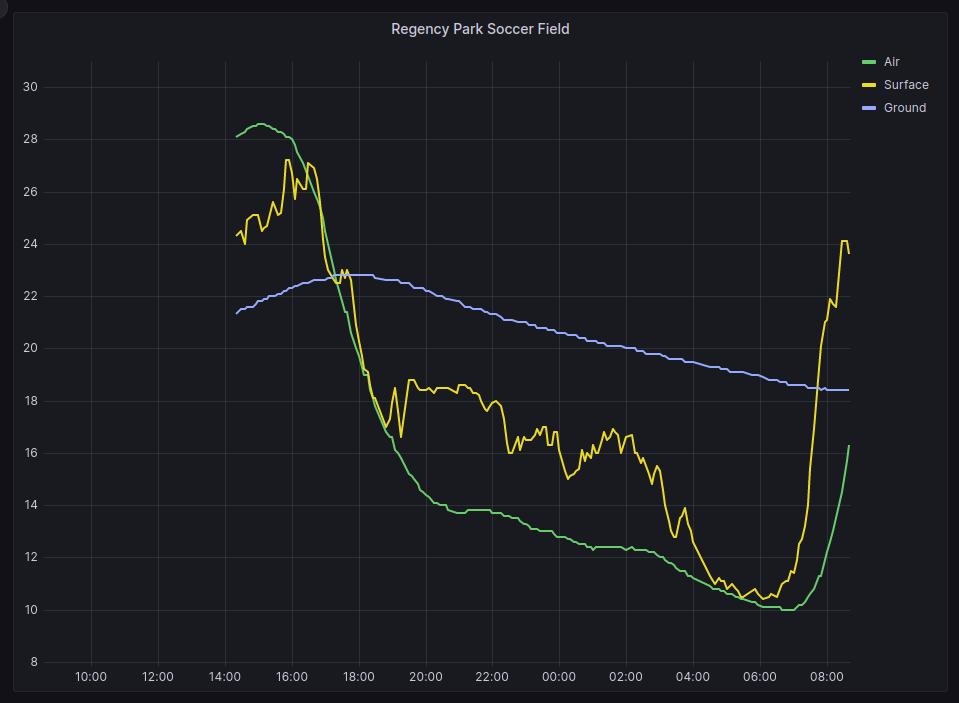
Grafana graph from installed temperature sensors

More details about the project, including the live sensor data, can be found on the project pages:

The Hardware – Temperature Sensor

General information (from The Things Network)

Device Id:       eui-a840416eb183975f
Description:     LSN50V2-D23 LORAWAN WATERPROOF TEMPERATURE SENSOR (3 PROBES)
Frequency plan:  Australia 915-928 MHz, FSB 2 (used by TTN)
LoRaWAN version: LoRaWAN Specification 1.0.3
Regional Parameters version: RP001 Regional Parameters 1.0.3 revision A

Hardware

Brand:            dragino
Model:            lsn50v2-d20-d22-d23
Hardware version: unknown_hw_version
Firmware version: lsn50v2-d20-d22-d23 1.7.5

Note: The LoRaWAN Regional Parameters is set to “Version 1.0.3 Revision A”. This is different to what was found to work with custom developed sensors. It is unclear at this stage what the actual difference is.

The Things Network (TTN) Configuraton

The sensor was easily registered with The Things Network, as the hardware has been pre-configured with a hardware profile from The Things Network Device Repository. This configures the network parameters (as described in the previous section) as well as data formatting functions.

The current Formatter Code returns four data points (Temp_Black, Temp_Red, Temp White, and BatV) and two status values (Work_Mode and ALARM_status).

The code for this uplink data formatting function is as follows:

function decodeUplink(input) {
	var port = input.fPort;
	var bytes = input.bytes;
	var mode=(bytes[6] & 0x7C)>>2;
	var data = {};
	 switch (input.fPort) {
		 case 2:
if(mode=='3')
{
  data.Work_mode="DS18B20";
  data.BatV=(bytes[0]<<8 | bytes[1])/1000;
  data.ALARM_status=(bytes[6] & 0x01)? "TRUE":"FALSE";
  
  if((bytes[2]==0xff)&& (bytes[3]==0xff))
  {
    data.Temp_Red="NULL";
  }
  else
  {
    data.Temp_Red= parseFloat(((bytes[2]<<24>>16 | bytes[3])/10).toFixed(1));
  }

  if((bytes[7]==0xff)&& (bytes[8]==0xff))
  {
    data.Temp_White="NULL";
  }
  else
  {
  	data.Temp_White=parseFloat(((bytes[7]<<24>>16 | bytes[8])/10).toFixed(1));
  }
  
  if((bytes[9]==0xff)&& (bytes[10]==0xff))
  {
    data.Temp_Black="NULL";
  }
  else
  {
  	data.Temp_Black=parseFloat(((bytes[9]<<8 | bytes[10])/10) .toFixed(1)); 
  }
}
else if(mode=='31')
{
  data.Work_mode="ALARM";
  data.Temp_Red_MIN= bytes[4]<<24>>24;
  data.Temp_Red_MAX= bytes[5]<<24>>24; 
  data.Temp_White_MIN= bytes[7]<<24>>24;
  data.Temp_White_MAX= bytes[8]<<24>>24; 
  data.Temp_Black_MIN= bytes[9]<<24>>24;
  data.Temp_Black_MAX= bytes[10]<<24>>24;  
}

  if(bytes.length==11)
  return {
      data: data,
    }
	break;
default:
    return {
      errors: ["unknown FPort"]
    }
  }
}

The data that is then sent through to NodeRED via the MQTT service is a text formatted JSON data structure.

Comments

In previous PAEIoT projects, the decoding of the LoRaWAN uplink data has been done at a later step, in NodeRed. It was done like this for two reasons: 1) The encoded LoRaWAN packets were smaller for transmitting over the network; and 2) Understanding how to decode and process the data could be done separately to anything that TTN does.

Both of these conditions have changed.

In Version 3 of the TTN service, a lot more meta-data about the network is sent with the sensor data, so any advantages of savings made with minimising the size of the internet packet is lost.

As the uplink data formatting code is automatically included by the manucaturer, is available and open-source, provided thatit works, there is no advantage to not using it.

NodeRed and InfluxDB – Data Procesing and Storage

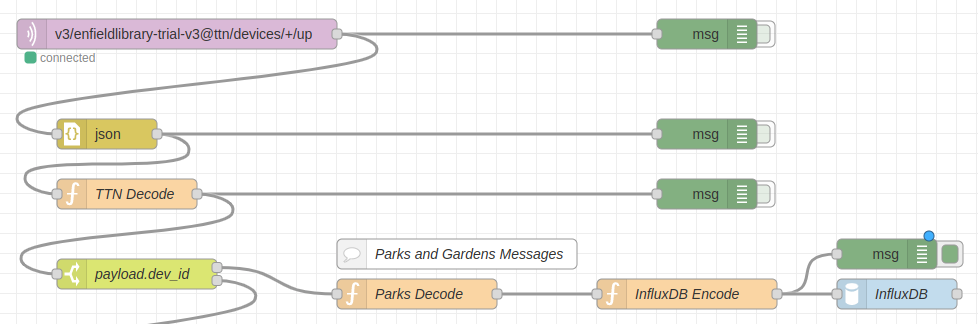
The following flow diagram describes the new path and changes added to support the new temperature sensor.

Specifically, the following changes and details were added.

TTN Decode (minor change)

The “TTN Decode” node now also passes the entire “uplink_message”, rather than just “payload_raw”. This means that the sensor location (longitude, latitude, and elevation) can be set via the registraion of the device in TTN.

payload.dev_id – Switch (New Output Added)

Added switch to separate flow for the Parks and Garden device (dev_id=eui-a840416eb183975f).

Note: When additional sensors are added, this switch node will need to be changed to also select the new sensor.

Parks Decode – Function (New)

This is the main function which pulls out and renames the data. The ‘msg.payload’ contains this data, and ‘msg.meta’ contains tags for the data.

// Parks Decode
// Decode temperature sensing device
// LSN50V2-D23 LORAWAN WATERPROOF TEMPERATURE SENSOR (3 PROBES)

var device_id = msg.payload.dev_id;

var batv       = msg.payload.uplink_message.decoded_payload.BatV;
var temp_black = msg.payload.uplink_message.decoded_payload.Temp_Black;
var temp_red   = msg.payload.uplink_message.decoded_payload.Temp_Red;
var temp_white = msg.payload.uplink_message.decoded_payload.Temp_White;

var latitude  = msg.payload.uplink_message.locations.user.latitude;
var longitude = msg.payload.uplink_message.locations.user.latitude;
var altitude  = msg.payload.uplink_message.locations.user.altitude;

var data = {};
data.batv       = batv;

data.temp_black = temp_black;
data.temp_red   = temp_red;
data.temp_white = temp_white;

data.temp_air     = temp_white;
data.temp_surface = temp_red;
data.temp_ground  = temp_black;

data.latitude   = latitude;
data.longitude  = longitude;
data.altitude   = altitude;

msg.payload = data;
msg.meta = {
    "device_id": device_id,
};

return msg;

InfluxDB Encode – Function (Copied)

This function is the same as prevously used to format the payload prior to sending it to the InfluxDB node (and into the database).

// InfluxDB Encode
var bucket    = "paeiot-bucket"

var device_id = msg.meta.device_id;
var fields    = msg.payload;

msg.payload = {   
  bucket: bucket,
  data: [{
    measurement: 'sensor',
    tags: {
      "dev_id":  device_id
    }, 
    fields: fields
  }]};

return msg;

InfluxDB – Database Node (Copied)

This uses the existing configured node without any changes.

Grafana Dashboard

A new folder and dashboardwas created to display the temperature data.

Parks and Gardens / Playing Ground Temperatures

The query used to return the air temperature (temp_air) is the following:

from(bucket: "paeiot-bucket")
 |> range(start: v.timeRangeStart, stop: v.timeRangeStop)
 |> filter(fn: (r) => r["_measurement"] == "sensor")
 |> filter(fn: (r) => r["dev_id"] == "eui-a840416eb183975f") 
 |> filter(fn: (r) => r["_field"] == "temp_air")
 |> drop(columns: ["dev_id", "latitude", "longitude", "altitude"])
 |> aggregateWindow(every: v.windowPeriod, fn: mean)
 |> yield(name: "mean")

An addtional two queries pull out the data for the surface temperature (temp_surface) and ground temperature (temp_ground) with the filter for the ‘_field’ value being changed respecfully. eg.

 filter(fn: (r) => r["_field"] == "temp_surface")
 filter(fn: (r) => r["_field"] == "temp_ground")

The resulting graph (as shown at the top of this post) also has some additional formatting changes (overrides), as pseudo-code:

Where field has name "temp_air", change Display Name to  "Air";
Where field has name "temp_surface", change Display Name to  "Surface";
Where field has name "temp_ground", change Display Name to  "Ground";

Conclusion

The existing PAE-IoT data processing system was modified to allow data from a newly added, commercially available temperature sensor, to be stored, displayed and dynamically updated.

A moderate amount of changes were required due to choices made by the hardware and system vendors. The system design choices that were made were informed by the desire to minimise additional changes if more sensors are added or if the system is extended in other straight forward ways.

This documentation is part of this process.

Configuring Grafana with Selectable Variables

This is a usage note that collects together a bunch of information that was collected while working on a Grafana Dashboard for an IoT project.

The projects is using Grafana v9.4.9 and querying data in an Influx Database, using the Flux query language.

Getting Location values

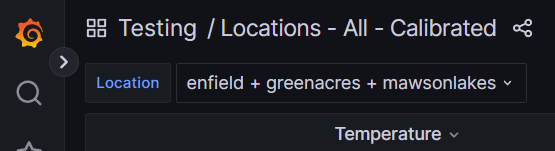
The data that is being collected is tagged with a string that describes the location of the sensor. This is separate to the name of the device (dev_id), and this was a deliderate choice so that the device could be maintained and possibly be replaced with a new one, and continue to collect data for a particular locatgion. (The new sensor would also have different callibration data.)

The following query in the variable definition will extract a list of the locations.

import "influxdata/influxdb/v1"
v1.tagValues(
    bucket: v.bucket,
    tag: "location",
    predicate: (r) => true
)

Using Location values

The variable can be used is the dashboard query by using “${location:json}”. The following will filter the data for the selected locations.

from(bucket: "paeiot-bucket")
 |> range(start: v.timeRangeStart, stop: v.timeRangeStop)
 |> filter(fn: (r) => r["_measurement"] == "sensor")
 |> filter(fn: (r) => r["_field"] == "temperature_10")
 |> filter(fn: (r) => contains(value: r["location"], set: ${location:json}))
 |> drop(columns: ["dev_id", "_field", "latitude", "longitude"])
 |> aggregateWindow(every: v.windowPeriod, fn: mean)
 |> yield(name: "mean")

Notice that this query also selects out the range of the data to display as selected from the time range of the dashboard.

Selecting Location Values

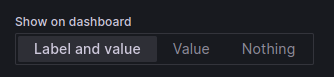
To allow the locations of interest to be selected on the dashboard as required, in the definition of the variable screen, select the “Show on Dashboard” option – “Label and Value”. This will automatically add the variable, possible values and selected values to the dashboard, and allow the user to selct between them.

Thanks

A quick thanks to Randall, from the PAE IoT Experimenters for providing the initial screenshot.

ZeroTier and How I Use It

The company behind Zerotier have asked for feedback, stories and testimonials from people using their software, and as a more than happy user of their VPN software and network I am pleased to submit this article. I am not being paid for this. I make use of their free tier access, which currently meets my needs, although this may change as my circumstances change and my IoT and home network grows. I have been a very happy user for more than 5 years.

By way of a simple introduction, ZeroTier is a Virtual Private Network (VPN)
technology, which enables all your devices to connect to each other via a
separate, encrypted and controlled, software defined IP network, supporting both
IPV4 and IPv6.

Why is this useful? The Zerotier network provides routers on the Internet which
are used to route you packets. The beauty of this is that once you have
installed the ZeroTier client on your devices (all major operating systems,
including mobile device are supported), and authorised them on your network,
they can communicate directly with each other, as if they were on the same local
network.

My initial use case was so that I could access my home servers while away from
home, particularly from my home wiki from my phone and mobile devices.
Installing Zerotier removes the need to add port forwarding on my home router,
or install a ‘Demilitarized Zone’ (DMZ) on my home network. Zerotier also allows
all services to be available via to VPN, rather than having to open ports for
every service or server that I want to access.

Another application is for remote access to remote servers for support services.
The security implications need to be discussed with any customers, but having
Zerotier installed on the remotely supported computer allows access from any
other device which is also on the same Zerotier network. This was used to
remotely control a robot at an exhibition and directly interact with the passing
public. Like with all network services, the performance depends on the
underlying networks.

In a more recent example, there is a plug-in for Zeroier in Home Assistant,
which makes it almost effortless to setup secure access to my home management
system for all members of the family both inside and outsode the home.

When registering devices on your private network (identified by a 16 digit
hexi-decimal number, or 32 bits), you can explicitly set the IP address that
devices are allocated, which they get when they authenticate to the network.
Even though these IP addresses are private, if you have a register domain, it is
possible to create public DNS names for them, which gives you the ability to use
your private network in exactly the same way as you may setup a server on the
internet itself.

What all this means is that Zerotier allows you to use internet as a ‘first
class citizen’, rather than as a second or third, which has what has happened in
the past when end users (home and commercial) have been forced to use network
work-a-rounds like port forwarding, dynamic DNS websites, OpenVPN and
IPSEC/L2TP, other router based solutions, and even manually configured web
caching. No configuration change is required to maintain access, provided the
end device has reasonably unfiltered access to the internet.

It is definitely worth giving Zerotier a go if you need to access all your
devices that are on private networks, or even if you want to access public devices via an encrypted and secured subnet. The free subscription level allows registering up
to 25 devices across multiple private networks. Checkout their website at
https://www.zerotier.com/

Applications and Software for IoT in the Home

The following is a short list of open source software worth checking out for
home automation and IoT. (There will probably be some posts on each of these in
the future.)

Glued together with, and using:

  • Debian / Linux; and
  • Docker

Usually, a RaspberryPi has been the platform of choice for deploying this
software. Due to the current shortage and difficulty of getting RaspberryPis at
the moment, Andreas Spiess (the guy with the Swiss accent) has just posted a
Youtube video comparing other options using second-hand mini-pcs.

Andreas has also got some older videos introducing IoTstack, linked on the
IOTstack website.

Home Assistant

This software for gluing together and managing a lot of the commercially
available IoT and Home Automation products available for the home. The software
used to connect to these products (called integrations) have been developed by
the Home Assistant community and is available as additional plug-in or library
which can be installed as required. (See: https://www.home-assistant.io/integrations/)

IoTstack

The IoTstack software is a system for installing, managing and backing up a
large number of other software services which may be required (eg. Home
Assistant, plus web server, databases, file servers etc.)

See: https://sensorsiot.github.io/IOTstack/Containers/Home-Assistant/

Power Monitoring using an Arduino

Open Energy Monitor is a project based in Wales which has developed an energy
and environmental monitoring system. They have an energy sensor (the emontx
series) which monitors the current in up to four(4) channels, together with the
AC voltage, in order to measure the power flowing through electrical circuits.

Current transformers are used, and are placed by clamping around individual
wires, allowing the current in the wire to be measured without making any change
or direct contact to the existing wiring.

The Open Energy Monitor store are selling their sensors as a kit, and one has
been ordered with four current transformers. This will be paired with an already
available Arduino UNO to allow for an evaluation of the monitoring software.

We are just after the power measurements for each channel to be reported via a
serial connection rather than using their project specific radio (a 433MHz radio
link).

All of the code that they are using (with and without the radio link) is
available via their forum and github repository.

As we evaluate this system we will be posting the results here.

The Open Energy Monitor also has a good set of documentation on how the units work, how they have been put together, and more on the theory of energy monitoring using current transformers.

New Toy (the reMarkable2) and a discussion about LoRaWAN and IoT

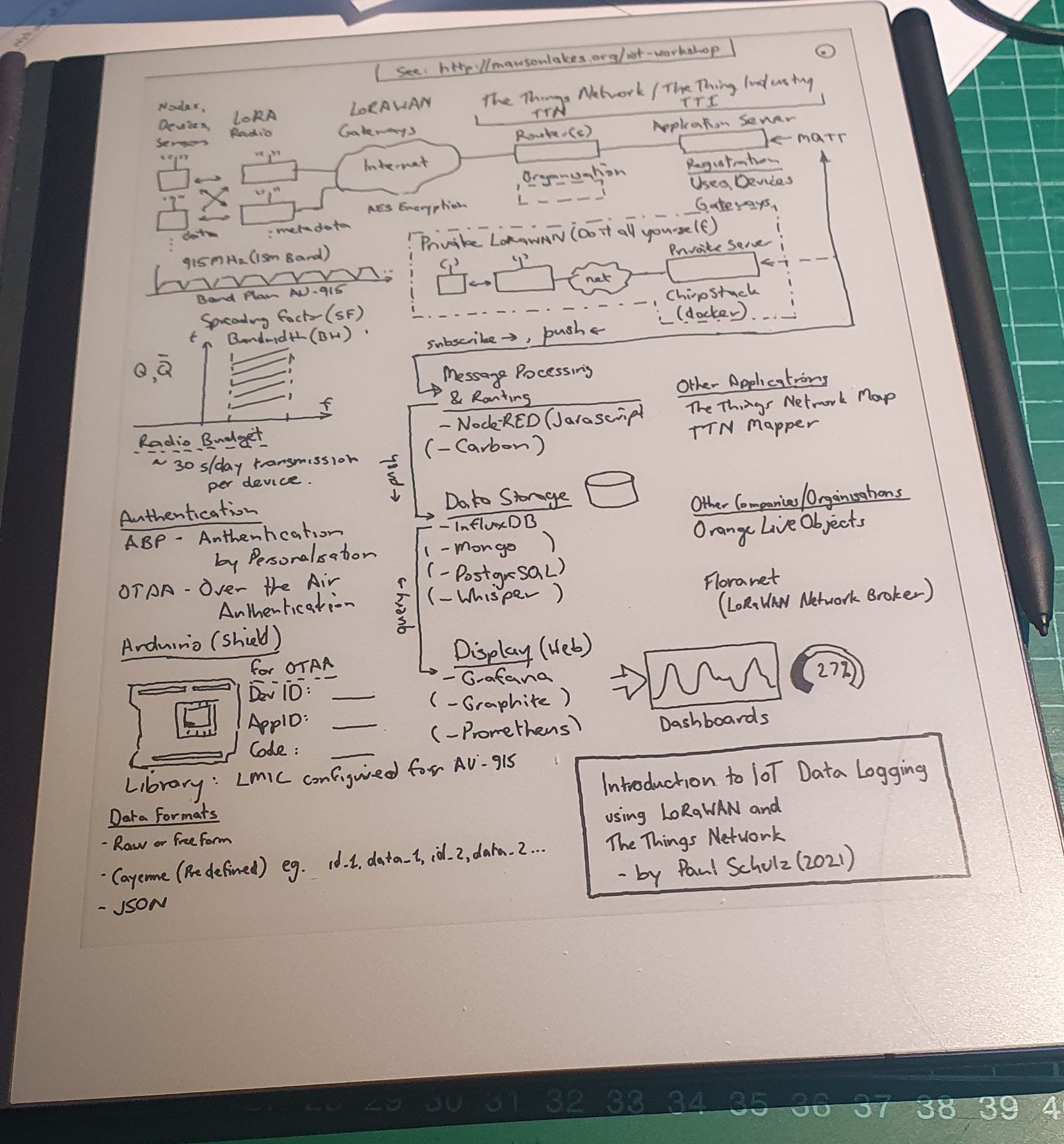
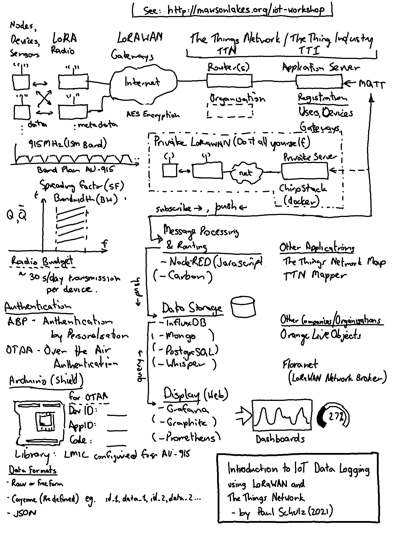
As a birthday present for myself earlier in the year I purchased a “reMarkable 2” e-ink tablet and it’s been awesome. More details about the device below (for those that are interested) but I recently had the chance to use it in a 1-1 meeting covering the PAE IoT Workshop and it worked really well as a paper notebook substitute. Afterwards I was able to go over the details, tidy them up, and rearrange them into a more sensible layout (rather than the original messy stream of consciousness).

Drawing on the reMarkable2

The tablet allows hand written text and drawings to be systematically edited, rearranged and replaced. There is the option on having layers (which I didn”t really use) and showing an underlying templete (lots to choose from) which is a useful guide for keeping everything nicely lined up, and which can be removed afterwards (replaced with the blank one).

The final result can emailed as PDF, PNG, or SVG formatted files, and the result is below.

About IoT Data Logging using LoRaWAN

The following is an example of the path which might be taken by a packet of date, created on a LoRaWAN IoT device, as it makes it’s way from the sensor to be displayed on a web-based dashboard on the Internet.

About the reMarkable2

There is quite a lot to talk about with the reMarkable2 but where is a vary brief summary – it’s a Linux based ARM system, which has Wifi access and drives a e-Ink display with stylus for drawing and input. The display and pen software is closed source, but everything else appears to be Free and Open Source Software. It is possible to SSH into the device from both Wifi and USB-C, with a password that is displayed from the settings menu. If you wanted to you could use that the change any of the software on the device but beware – there be dragons.

reMarkable (the company) currently send out software updates regularly (almost monthly), as these also include new features and tweeks.

There are also third party projects (the reHackable project) which make the tablet even more useful, and support the use of the reMarkable in many more ways than the manufacturer may have intended, including replacing the entire operating system. I have not considered doing this just yet.

COVID-19 in Mawson Lakes and Parafield

Public Service Announcement

The Department of Education, South Australia has issued the following anouncement (Link) this evening – Sunday, 15 November

Mawson Lakes School and Preschool will be closed on Monday 16 November following SA Health advice that a student who attends the school is a close contact to someone who has been diagnosed with COVID-19.

People who need to self-isolate will be contacted with further instructions.

A thorough clean of all relevant areas will be carried out. Parents have been notified.

From the South Australian Govenment Website (Link), concern has been expressed regarding anyone visiting the Lyell McEwin Hospital.

Anyone who was in the LMH emergency department between 5.30 pm Friday 13 November and 4.00 am Saturday 14 November who has not been contacted by SA Health should self-quarantine immediately and contact the SA COVID-19 Information Line on 1800 253 787.

In addition, anyone who was at Parafield Plaza Supermarket on Thursday 12 November between 10:30 am and 11:30 am should monitor for symptoms and get tested as soon as symptoms appear.

The local Councillor for the City of Salisbury, Beau Brug is covering these announcements on his Facebook page – here

If you think you may have been exposed or have symptoms, a Popup Testing Site has been set up at Parafield Airport. SA Health Facebook

Updates

Monday, 16 Nov 2020 – The event is now being called the “Parafield Cluster”, and now has 17 cases.

Contact Tracing details from SA Health – Includes locations (eg. shops) and services (eg. Bus services) with details of where and when contact with the virus may have occurred.

Affected locations (check the above site for specific times):

  • Elizabeth Vale, Lyell McEwin Hospital
  • Elizabeth, The Aquadome
  • Mawson Lakes, Mawson Lakes School and Preschool
  • Salisbury Downs, Thomas More College
  • Parafield Plaza Supermarket
  • Port Adelaide, Hungry Jacks
  • Anglicare SA Aged Care Facility, Brompton
  • Yatala Labour Prison
  • Salisbury Bus Interchange
  • Salisbury City Fruit Bowl
  • Elizabeth Shopping Centre, Harris Scarf
  • Hollywood Plaza – Surgery, Woolworths, Star Discount Chemist
  • Mantra on Frome
  • Enfield, Ekam Indian Groceries, Enfield Plaza
  • Mawson Lakes, Mint Leaf Lounge
  • Adelaide, Bus Stops – Internode, Grenfell St; GA1/GA2/GA3 near Train Station
  • Adelaide, Metro Convenience Pty Ltd, Waymouth St, Adelaide

Monday Evening, 16 Nov 2020 – Additional locations:

  • Ingle Farm, Coles, Ingle Farm Shopping Centre
  • Pooraka, On The Run, 126 Bridge Rd
  • Woodville South, Woodville Pizza Bar, 1/58 Woodville Rd

Tuesday, 17 Nov 2020 – Additional locations added, see contract tracing page for times:

  • Parabanks, Namaste Supermarket
  • Eastwood, Adelaide Eye and Lase Centre, 215 Greenhill Road
  • Edinburgh, SA Structural Steel, 5 Kaurna Ave
  • Elizabeth, BigW
  • Fulham Gardens, Community Centre – Festival of Lights Function
  • Findon, Woolworths
  • Gepps Cross, Spotlight
  • Mawson Lakes, Foodland
  • Parafield Gardens, Martins Road Family Medical Practice (Podiatrist)
  • South Plymton, Jai Shiv Fruit & Veg Shop
  • Kurralta Park, Coles, 153-164 Anzac Highway
  • Hollywood Plaza, McDonalds, Target

Everything Old is New Again

Woohoo! A new project, or at the very least some new stuff to learn about. It’s been a while since I learnt about the basics of VLSI design and, in particular the ‘Magic’ chip design software package.

Google have just announced that they are partnering with SkyWater Technology Foundry to produce the “SkyWater Open Source PDK“, to produce a fully open Process Design Kit, for producing VLSI Chips. The 130nm process isn’t the newest, but it is still suitable for a variety of hardware applications.

As part of this collaboration, Google has also announced that they will be sponsoring a chip fabrication run later in the year, completely free for the chosen projects, when all the project code, file and documentation is Free and Open Source.

I’m not sure about you, but I have always loved the thought of producing a custom designed chip, otherwise known as an ASIC (Application Specific Integrated Circuit). There is going to be a whole bunch of things that I am going to have to learn, but being involved in the process of producing something like that will be awesome.

The aim is produce the design with cells provided in the SkyWater PDK. The initial proposal is that there will approximately 10mm^2 apace available (Maybe 3mm x 3mm). The 130nm process would there allow an area of 10,000 x 10,000 transistors ( Very roughly, if the transistors were 300nm in size. 3×10^-3 / (0.3 x 10^-6) = 10 x 10^3 )

Any-ho, this should be a lot of fun… and the Skywater-PDK Slack community has been particularly helpful.

References

Useful process documentation

Introduction to the design process for the chip fabrication process – https://www.vlsisystemdesign.com/inception-content-vsd/

The Super Chook House Project

After two years of delay, our household now has a chicken coop and five chickens (Bigbird, Tiny, Rose, Flame and Raptor).

Part of the plan other then getting the birds to produce eggs, eat garden waste, poop and generally scratch around, was to use this opportunity to turn their humble home into a Super Chicken House..

Currently, they need to be shut in and let our every day which which is not much of a chore but still needs to be done. Also, it would be nice to know when there are eggs to be collected, and if they need more water or food. Some temperature monitoring might also be ‘cool’ as well as air quality sensing.

As an acknowledgement to some other great work being done on home automation, the name and logo of the project had been blatantly copied and modified from Jon Oxer’s SuperHouse Automation business. (Does this classify as Fan art?)

Solar Power

I was struggling to find a reasonable cheap way to get power to the SuperCookHouse. I had some sets of solar powered garden fairy lights, several different models to experiment with. They all had internal batteries which charged up during the day and then automatically switched on at night.

The smaller units had multiple outputs on for their LED’s (three wires) which allowed them to have some interesting twinkle modes. They were cheaper, but they only contained a single Ni-MH battery. The larger unit had three batteries (see image below) but only had a two wire LED output. The cases themselves also had some rubber seals for waterproofing.

Inside connections and batteries of larger Solar Fairly Light unit.

In the larger unit the output from the charged batteries was 4.1V. This proved sufficient to power up a Heltec WiFi LoRa 32 (V2) board which I had at hand. This was connected directly across the batteries.

Connecting a device directly across the batteries.

This connection bypasses the power switch and the flashing circuit of the solar panel board. The batteries should still be able to be charged via the solar panel.

The single-sided controller board.

Briefly looking at the control board, with some hackery, it should be possible to make use of the on/off switch to control external power, but two other modifications would also need to be made;

  • bypass the flashing circuit
  • disable the ‘power off’ function when the solar panel is in light.

This work has been left to a time in the future.

Update: The batteries powered the module, as it was without any sensors, for about three hours.

Update 2: It looks like the chip SC24C02 (ATMEL268 24C02N) is an EEPROM 2-wire 2K memory chip (Datasheet). Pins 5 and 6 are the Serial Data (SDA) and Serial Clock Input (SCL) respectfully, which are routed up to pins 2 and 3 on the other (currently unknown) package.